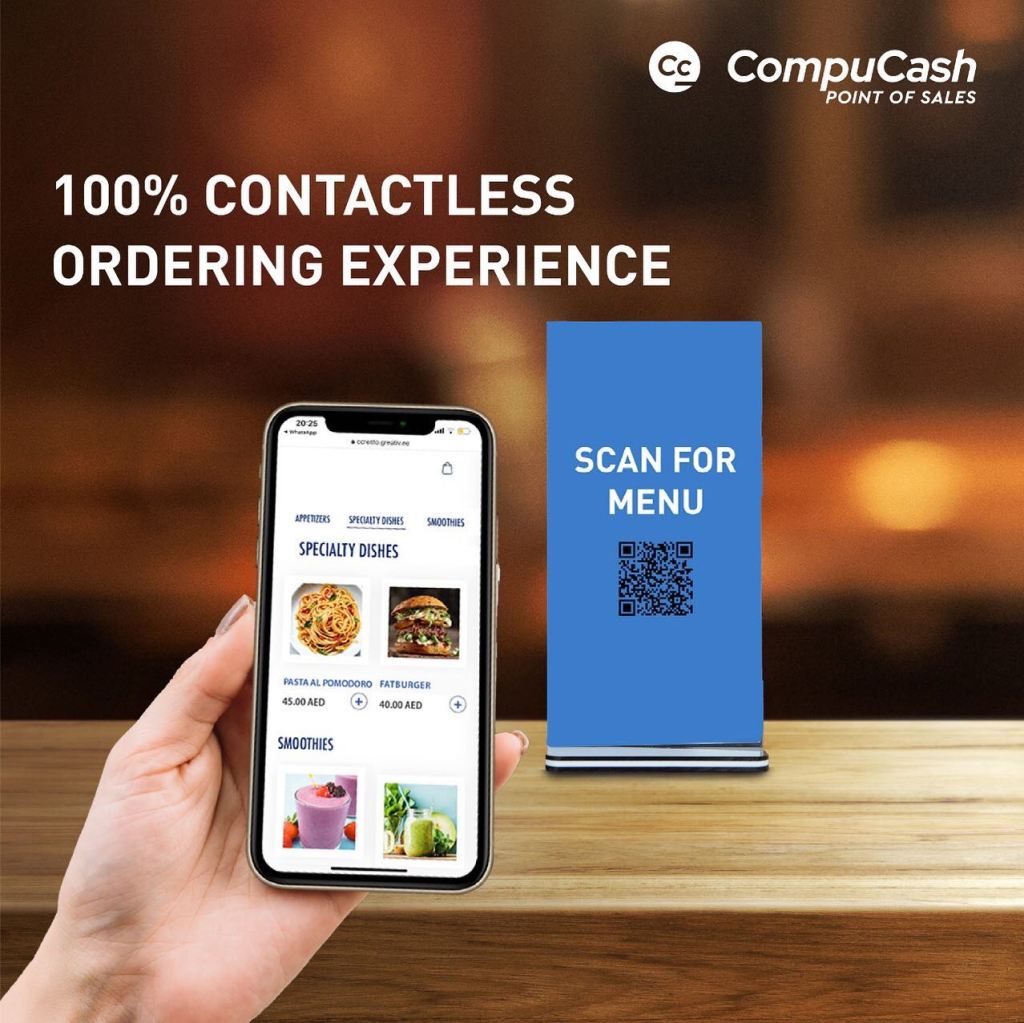
A QR digital menu lets a guest open your menu on a phone by scanning a code at the table or service counter. It can reduce the work of replacing printed menus, but its value depends on clear content, a reliable link and a good experience on a small screen.
A digital menu and self-ordering are different
A menu may simply display items, descriptions and prices. Self-ordering adds a workflow for submitting an order, identifying the table or collection point, and sending the request to the operation. Online payment is another capability to confirm separately.
Before choosing a setup, decide whether guests will browse, order, pay or use a combination of these actions. Ask for a demonstration of each required step rather than assuming every QR menu includes it.
Make the menu easy to read
Group items into useful categories and keep names and descriptions clear. Use readable text, short descriptions and photographs where they help a guest choose. A page full of large images can be slow on a mobile connection.
Explain available variations and prices before a guest reaches checkout. Keep dietary and ingredient information accurate and provide a way for guests to ask staff about anything that needs clarification.
Plan how updates will be managed
Assign someone to maintain descriptions, prices and availability. Confirm whether your chosen menu shares data with the POS, uses a separate update process or needs an integration.
Test a price change and an unavailable item. Check how quickly the guest-facing menu reflects each change and whether already-open menus refresh. Do the same for different branches or service periods if those apply to your business.
Test the complete order journey
If you need self-ordering, scan the code as a guest, add a variation, submit the order and follow it through the POS and kitchen workflow. Confirm how the table, pickup location or service point is identified.
Include changes, duplicate taps, unavailable items and payment failures in the demonstration. Your team should know how to help a guest and where to see the order status.
Place codes where guests can use them
Use a clear call to action such as “Scan to view the menu.” Keep the code large enough to scan, with good contrast and a clean border around it. Test the printed version under your venue’s lighting before placing it on every table.
Use a stable destination link that you can maintain. Check codes regularly for damage or replacement, and keep a printed menu or staff-assisted option for guests who prefer one.
Prepare the team before launch
Staff should know whether the QR experience is for browsing or ordering, how orders arrive and how guests can request help. Explain the new process consistently at the start of service.
CompuCash offers QR and digital menu workflows. Our UAE team can demonstrate the available menu, ordering and integration options for your proposed setup and explain what is included.
Your setup checklist
- Choose browsing, ordering and payment requirements.
- Prepare readable menu content and accurate prices.
- Confirm who maintains availability and updates.
- Test guest, POS and kitchen workflows together.
- Check printed codes on different phones.
- Train staff and provide an alternative way to see the menu.
Book a QR menu workflow demo with our UAE team. For another way to encourage return visits, read our guide to loyalty programmes.